Swipewipe alternative
Swipewipe alternatives for iPhone: what it does, what it costs, what to use instead
Swipewipe is the app that made swipe-to-delete popular: swipe right to keep a photo, left to delete it, one month at a time. It’s free with ads and a cap on swipes, and its US subscription costs $3.99 to $9.99 a week or $29.99 a year. If you want to go through photos and videos month by month, with On This Day and a photo map, Swipewipe does that well. If you want no ads, or a cleaner that also groups duplicates with a suggested best shot and compresses large photos, PhotoCleanse, which we make, has Swipe decks too. The Photos app is the free option without swiping.
Updated

1 free Swipe deck a month, no ads
You confirm before deleting.
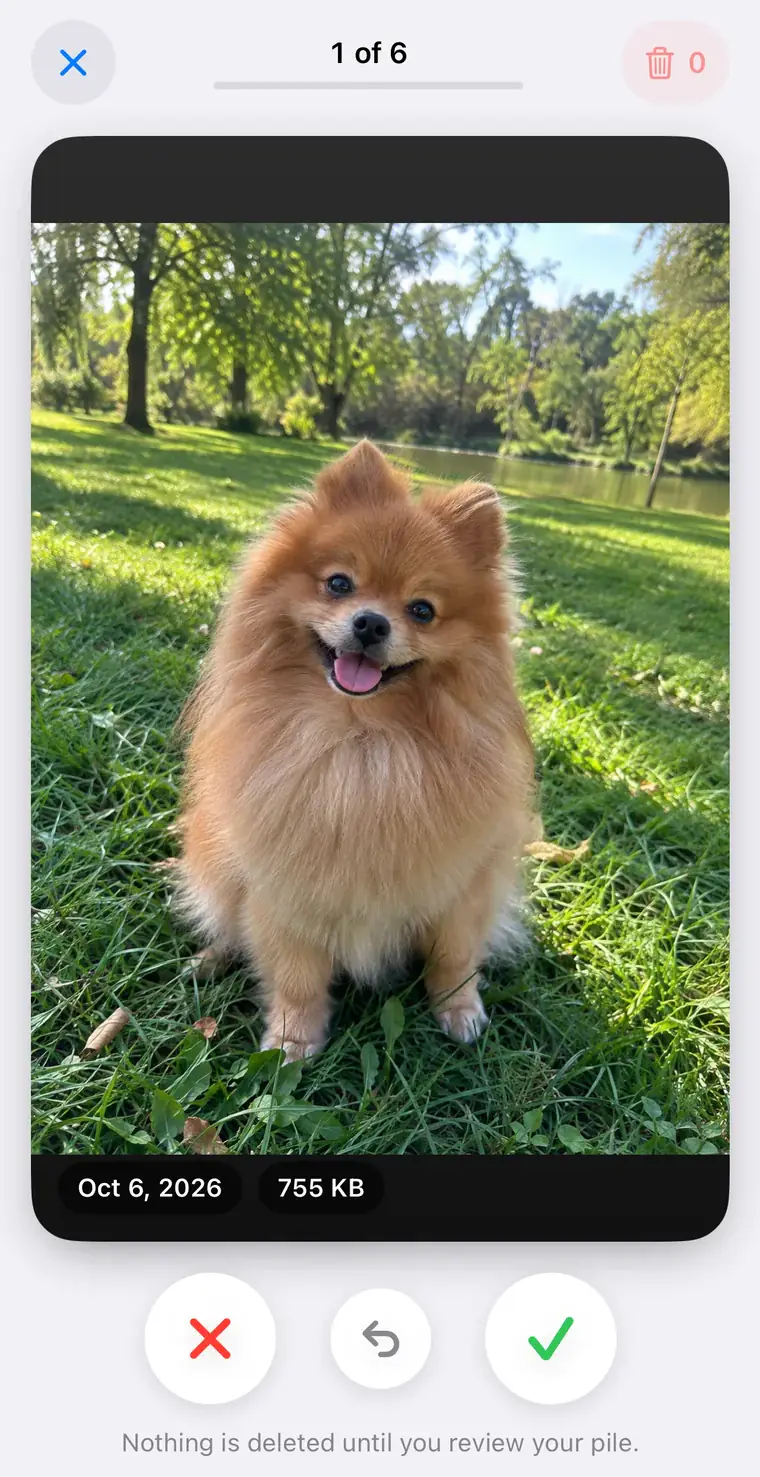
The app
What Swipewipe does
Everything here comes from Swipewipe’s own App Store listing, website and help page, checked November 6, 2026. We haven’t tested Swipewipe for this page.
Adam O’Kane created Swipewipe; MWM has published it since October 2022 and bought it in June 2024, its help page says. You pick a month and go through its photos and videos one by one: right to keep, left to delete. A month shows up in the list once it’s over, and recent photos are under Recents. A progress wheel shows how far you got, so you can stop and pick up later.
Deleting. Swiping left only marks a photo. Marked photos are deleted when you confirm on a review screen at the end of the month, or earlier from the trash button, and you can undo a swipe or change any choice there first. On iPhone, deleted photos wait in Recently Deleted for 30 days. Swipewipe needs full access to your library; limited access isn’t supported.
Beyond swiping. The listing and website describe On This Day with a home screen widget and streaks, a map of where photos were taken, an AI enhancer that saves an improved copy of blurry or low-quality photos, Supercut videos made from a month, bookmarks for photos you’re unsure about, and a Duplicates view that groups identical and near-identical photos.
Standing. The US listing shows 4.7 from about 101,000 ratings; the website claims more than 25 million downloads and 167,000 ratings worldwide. It runs on iPhone and iPad with iOS 18 or later and on Apple Vision Pro, in 12 languages, and there’s an Android version.
Price
Is Swipewipe free?
It’s a free download. Its help page says the free version has ads and limits how many photos you can swipe before a countdown or a short video; the subscription removes both.
| Plan | Swipewipe | PhotoCleanse |
|---|---|---|
| Weekly | $3.99, $4.99, $7.99 or $9.99 | $5.99 |
| Yearly | $29.99 | $29.99 |
| Free trial | The listing doesn’t mention one | 3 days on the yearly plan, for eligible new subscribers |
| Without paying | Free with ads and a cap on swipes; wait for a countdown or watch a short video for more | 3 duplicate groups, 1 Swipe deck and 1 photo compression a month, no ads |
The Swipewipe prices come from the In-App Purchases list on its US listing, which shows every price a developer has set up, including tests and offers; the paywall shows the one you pay. The list also has two “Swipewipe - Premium” items at $5.99 and $9.99 without a stated period, left out of the table. PhotoCleanse’s prices are its US App Store prices.
Side by side
Swipewipe and PhotoCleanse compared
The Swipewipe column is what its listing, website and help page say. We make PhotoCleanse, so weigh the right column with that in mind.
| Job | Swipewipe | PhotoCleanse |
|---|---|---|
| Swipe gesture | Right to keep, left to delete | Right to keep, left to mark for deletion |
| What you swipe | Photos and videos | Photos only |
| How decks are cut | One month at a time (a month appears once it’s over), Recents, On This Day | Shuffle, Screenshots or one month, up to 30 photos a deck |
| Duplicates and similar shots | Identical and near-identical photos grouped; similar, blurry shots and screenshots | Duplicate groups with a suggested BEST photo |
| How strict matching is | Not listed | Exact Matches, Balanced or More Matches |
| Compress large photos | Not listed | Smaller copies; originals deleted only if you choose |
| Favorites | Not listed | Never shown in Swipe, never selected automatically |
| Decide later | Bookmark a photo and come back to it | No bookmark; photos you kept don’t come back |
| Extras | On This Day widget and streaks, photo map, AI photo enhancer, Supercut videos | None |
| Before deleting | Marked photos wait on a review screen | Marked photos wait in a review pile |
| After deleting | Recently Deleted for 30 days | Recently Deleted for 30 days |
| Ads | The listing says the app contains ads | No ads |
| Devices | iPhone, iPad, Apple Vision Pro, Android | iPhone |
| Languages | 12 | 8 |
| Needs | iOS 18 or later | iOS 17 or later |
“Not listed” means Swipewipe’s listing and website don’t mention the feature, not that the app lacks it.
Trade-offs
Where each one is stronger
Swipewipe is stronger at going through a whole camera roll as a habit. It covers videos, which PhotoCleanse’s Swipe doesn’t, and videos are often what fills an iPhone. It adds On This Day, streaks, a photo map, an enhancer and Supercut videos, none of which PhotoCleanse has. It runs on iPad, Vision Pro and Android, and it has years of ratings, where PhotoCleanse is new and has no US ratings yet.
PhotoCleanse is stronger at clearing space without ads. A scan on your iPhone groups copies and similar shots, marks one BEST photo in each group, and lets you choose how strict matching is. Select All Duplicates leaves each BEST photo and every favorite unselected. Compress lists large photos with the space each would save and saves smaller copies at the quality and size you pick. Its Swipe decks hold up to 30 photos, never show favorites, and remember the photos you kept so they don’t come back. Its free plan is small, but it has no ads and no countdowns.
Deleting works the same way. In both apps a swipe only marks a photo, you confirm on a review screen, and deleted photos go to Recently Deleted for 30 days. Neither one deletes on the swipe itself.
Privacy labels are close. Swipewipe’s label lists identifiers, usage data and other data as used to track you, and doesn’t list Photos or Videos as collected. PhotoCleanse’s label lists purchases, identifiers and usage data as used to track you, for ad measurement, and PhotoCleanse doesn’t upload your photos. Neither has a tracking advantage.
Which one
Keep Swipewipe, use Photos, or switch?
Keep Swipewipe if
- Your videos take most of the space
- You like On This Day, streaks and the photo map
- You use it on an iPad or Android too
- You already pay and the price suits you
Use only the Photos app if
- You want no ads and no subscription
- Your clutter is mostly exact copies, which the Duplicates album merges
- You’re fine selecting photos in a grid instead of swiping
Try PhotoCleanse if
- You want to swipe through photos without ads or countdowns
- Your library has rows of near-identical shots and retakes
- You’d rather shrink large photos than delete them
- You want favorites kept out of every deck
Before you switch
- Photos you marked in Swipewipe aren’t deleted until you confirm on its review screen
- A subscription renews until you cancel it; deleting the app doesn’t cancel it
- Videos stay yours to clear in Photos or Swipewipe
Step by step
How to move from Swipewipe to PhotoCleanse
Finish what’s pending in Swipewipe first, then clean up in order: exact copies, similar shots, one-off clutter, videos, then compression.
- 01
Finish or clear Swipewipe’s review screen
Open Swipewipe and decide on the photos you marked: confirm the delete or unmark them. Until you confirm, they’re still in your library.
- 02
Check your subscription
Open Settings, tap your name, then Subscriptions. If Swipewipe is listed and you’re leaving it, tap it and cancel. Deleting the app doesn’t cancel a subscription.
- 03
Protect what matters
PhotoCleanse never selects favorites automatically and never shows them in Swipe. In Photos, tap the heart on any photo you want kept out of a cleanup.
- 04
Merge exact copies in Photos
Open Photos, tap Collections, scroll to Utilities and tap Duplicates, then tap Merge on each set. Photos keeps one copy and moves the others to Recently Deleted. The album appears on iOS 16 and later, and only when Photos finds copies.
- 05
Clean up similar shots
Install PhotoCleanse and allow full photo library access. Open Duplicate Photos: each group has a suggested BEST photo, and you pick which of the others to delete. Options switches between Exact Matches, Balanced and More Matches. Delete and confirm in iOS.
- 06
Swipe through the rest
In the Swipe tab, start the Screenshots deck, a month or Shuffle. Swipe left to mark a photo, right to keep it, and use Undo if you change your mind. Check the pile in Review, tap Delete and confirm once.
- 07
Go through videos in Photos
PhotoCleanse doesn’t swipe videos. In Photos on iOS 26 and 27, tap Collections, then Media Types, then Videos; on iOS 18, scroll below your library to Media Types. Tap Select, pick the videos you don’t need and tap the Trash button.
- 08
Compress what you keep
In Compress, select large photos and save smaller copies to the Compressed by PhotoCleanse album. Originals are deleted only if you turn that on and confirm.
Deleted photos and videos stay in Recently Deleted for 30 days, so the storage comes back after that, or sooner if you empty the album yourself. The free plan covers 3 duplicate-group cleanups, 1 Swipe deck and 1 photo compression a month; PhotoCleanse Pro removes the limits.
Free, built in
Clean up without Swipewipe or any app
The Photos app has no swipe-to-delete mode, but it can do the same job one photo or one screenful at a time, with no ads and no limits. Apple’s steps:
- To go one by one, open a photo full screen, tap the Trash button to delete it, and swipe to the next.
- To delete many, tap Select in your library or an album, tap the photos or slide your finger across them, then tap the Trash button.
- For copies, open the Duplicates album under Utilities and tap Merge.
- Open Recently Deleted and delete for good if you need the space now; otherwise it clears itself after 30 days.
With iCloud Photos on, a photo deleted on your iPhone is deleted on every device that uses iCloud Photos, Apple says, so check what you select.
Apple: Delete photos on your iPhone or iPad · Recently Deleted on iPhone
Can you use Swipewipe for free?
Yes, with limits. Swipewipe’s help page says the free version shows ads and caps the number of swipes: when you reach the cap, a countdown starts before you can go on, or you can watch a short video for more swipes. The subscription removes the ads and the cap and adds features such as the photo enhancer on iPhone. The help page doesn’t say how many swipes the free version allows.
How much does Swipewipe cost?
On the US App Store, its In-App Purchases list shows weekly plans at $3.99, $4.99, $7.99 and $9.99 and a yearly plan at $29.99, plus two “Premium” items at $5.99 and $9.99 whose period the list doesn’t state. The list shows every price the developer has set up, often for tests and offers, so the price on the paywall is the one you pay. The listing doesn’t mention a free trial.
Does Swipewipe actually work?
It does what its help page describes: swiping left only marks a photo, and marked photos are deleted when you confirm on a review screen, after which they wait in Recently Deleted for 30 days on iPhone. It has about 101,000 US ratings averaging 4.7, and its website claims more than 25 million downloads. We make PhotoCleanse and haven’t tested Swipewipe for this page.
What is the best free Swipewipe alternative?
The Photos app costs nothing and has no ads: open a photo and tap the Trash button, or tap Select and delete many at once, and the Duplicates album under Utilities merges exact copies on iOS 16 and later. It doesn’t have a swipe-to-delete mode. PhotoCleanse, which we make, has a free plan with 1 Swipe deck, 3 duplicate-group cleanups and 1 photo compression a month, without ads.
Does deleting in Swipewipe delete photos from iCloud?
If iCloud Photos is on, yes. Apple says a photo deleted on one device is deleted on every device that uses iCloud Photos. Swipewipe’s help page says photos it deletes on iPhone can be recovered from Recently Deleted for up to 30 days, and that on Android deletion is final, though a copy in Google Photos stays.
Does PhotoCleanse swipe through videos like Swipewipe?
No. PhotoCleanse’s Swipe decks hold photos only. Swipewipe goes through photos and videos, so if long videos are what fill your iPhone, Swipewipe or the Videos list in the Photos app covers them and PhotoCleanse doesn’t.
How do I cancel a Swipewipe subscription?
On iPhone, open Settings, tap your name, then Subscriptions, select Swipewipe and tap Cancel Subscription. If there’s no cancel button, it’s already cancelled. Deleting the app doesn’t cancel it. On Android, cancel in your Google Play subscriptions.
Sources: the Swipewipe App Store listing (US, November 6, 2026), swipewipe.com and its help page; Apple’s Delete photos on iPhone, Merge duplicate photos, Locate photos and videos by media type, Cancel a subscription from Apple and App privacy details on the App Store.
Related guides

Try PhotoCleanse
on your iPhone
Try one Swipe deck and 3 duplicate cleanups a month for free, without ads.
For iPhone · Optional Pro subscription
Not for videos or Android phones: PhotoCleanse cleans up photos only.

Scan with your iPhone camera
Opens the App Store