Step by step
How to delete screenshots on iPhone, all at once or one by one
Every screenshot you take is saved to Photos and collected in one place. On iOS 26 and 27, open Photos, tap Collections, scroll to Media Types and tap Screenshots. Tap Select, slide your finger across the thumbnails to select many at once, tap the Trash button and confirm. Then empty them from Recently Deleted if you need the space today.
Updated

1 free Swipe deck a month
You confirm before deleting.
Compare
Four ways to get rid of screenshots
The Screenshots collection is the fastest way to clear a backlog. The other three keep a new one from forming.
| Method | Best for | Limit |
|---|---|---|
| The Screenshots collection in Photos | Clearing out many screenshots at once | You check each thumbnail yourself; small text is hard to read in the grid |
| The preview right after you take one | Screenshots you only need for a moment | Works only for the screenshot you just took |
| Swipe through a Screenshots deck | Deciding one by one at full size | Needs an app; PhotoCleanse’s free plan includes one deck a month |
| Save as PDF to Files instead | Long webpages you want to keep | Only for full-page screenshots; the PDF lives in Files, not Photos |
In the Photos app
How to delete many screenshots at once
The steps below use the Photos app on iOS 26 and 27. The table after the steps gives the path on older versions.
- 01
Open the Screenshots collection
Open Photos, tap Collections, scroll down to Media Types and tap Screenshots. Photos files every screenshot here automatically, so you don’t have to pick them out of your camera roll.
- 02
Look before you select
Scroll through once and note anything you still need: a ticket, a booking code, a receipt for a return. Favoriting a screenshot (tap it, then the heart) doesn’t protect it from deletion in Photos; anything you select is deleted, favorite or not. Leave them out in the next step, or save a copy to the Files app first.
- 03
Select the ones to delete
Tap Select, then tap screenshots one by one, or slide your finger across a row of thumbnails to select several at once, as Apple describes. Keep sliding down the grid to select a whole run. Before you delete, tap any screenshot you want to keep to deselect it; a selection made by sliding includes everything you passed over.
- 04
Delete them
Tap the Trash button, then confirm. The screenshots disappear from your library and from the collection, and move to Recently Deleted.
- 05
Empty them from Recently Deleted
Deleted screenshots keep using space for 30 days. If you need the space now, go back to Collections, scroll to Utilities, open Recently Deleted (it asks for Face ID or Touch ID), tap Select, choose the screenshots and delete them. They can’t be recovered after that.
Sources: Apple Support, Take a screenshot on iPhone and Delete photos on your iPhone or iPad.
By iOS version
Where are screenshots on iPhone?
In the Photos app’s Screenshots collection: on iOS 26 and 27, tap Collections, then Screenshots under Media Types. Apple’s iPhone User Guide gives a different path for each older version. To check yours, open Settings, tap General, then About.
| iOS version | Where to tap |
|---|---|
| iOS 26 and iOS 27 | Photos › Collections › Media Types › Screenshots |
| iOS 18 | Photos › scroll down below your library › Media Types › Screenshots |
| iOS 17 | Photos › Albums › Screenshots, under Media Types |
| iOS 16 | Photos › Albums › the Screenshots album |
Stop the pile
Can I delete a screenshot right after I take it?
Yes: delete a new screenshot from the preview instead of saving to Photos. Most screenshots are for one moment: a code to type, a map to send, a message to forward. The quickest cleanup is not keeping those screenshots at all.
On iOS 26 and 27, a screenshot opens full screen by default. From there you can crop, mark it up, share it, save it, or cancel and delete it. If you only needed it for a moment, cancel or delete it there instead of saving it.
Prefer the old thumbnail? Go to Settings, tap General, then Screen Capture, and turn off Full-Screen Previews. The screenshot then shows as a small thumbnail in the corner, as on iOS 18 and earlier: tap it to edit or delete it, or swipe it away. Apple’s iOS 27 guide notes that screenshots taken with a thumbnail save automatically.
Long webpages are better as a PDF. Take a screenshot, tap Full Page, then save it as a PDF to Files. It stays out of your photo library.
What to keep, what to delete
A screenshot backlog is mostly things that expired. Deciding quickly is easier with a few rules:
- Delete codes, tickets and boarding passes once the trip or event is over
- Delete maps, directions and order tracking you no longer need
- Delete memes and posts you already sent to someone
- Delete repeats: three screenshots of the same chat or page
- Keep receipts and warranties until the return window or warranty ends, or save them to Files
- Keep anything that proves something, such as a payment, a booking change or a support reply
- Keep screenshots of people and moments you’d want to look at again
Screenshots of documents with personal details, such as IDs, bank details or passwords, are worth deleting once you’re done with the document. With iCloud Photos on, every screenshot is stored in iCloud too.
Troubleshooting
When deleting doesn’t work as expected
The Trash button is gray. Apple says photos added by connecting your iPhone to a computer can’t be deleted directly in the Photos app. Stop syncing them from the computer and they leave the iPhone. Screenshots you took on the iPhone aren’t affected.
Screenshots came back on another device, or vanished from one. With iCloud Photos on, deleting a screenshot on your iPhone deletes the same screenshot on every device signed in with the same Apple Account. iCloud Photos is meant to sync deletions this way, so save any screenshots you need elsewhere first.
Storage didn’t go down. Deleted screenshots sit in Recently Deleted for 30 days. Delete them from there, then check Settings › General › iPhone Storage again. Our iPhone storage full guide covers the other reasons storage stays full.
One at a time
Swipe through screenshots with PhotoCleanse
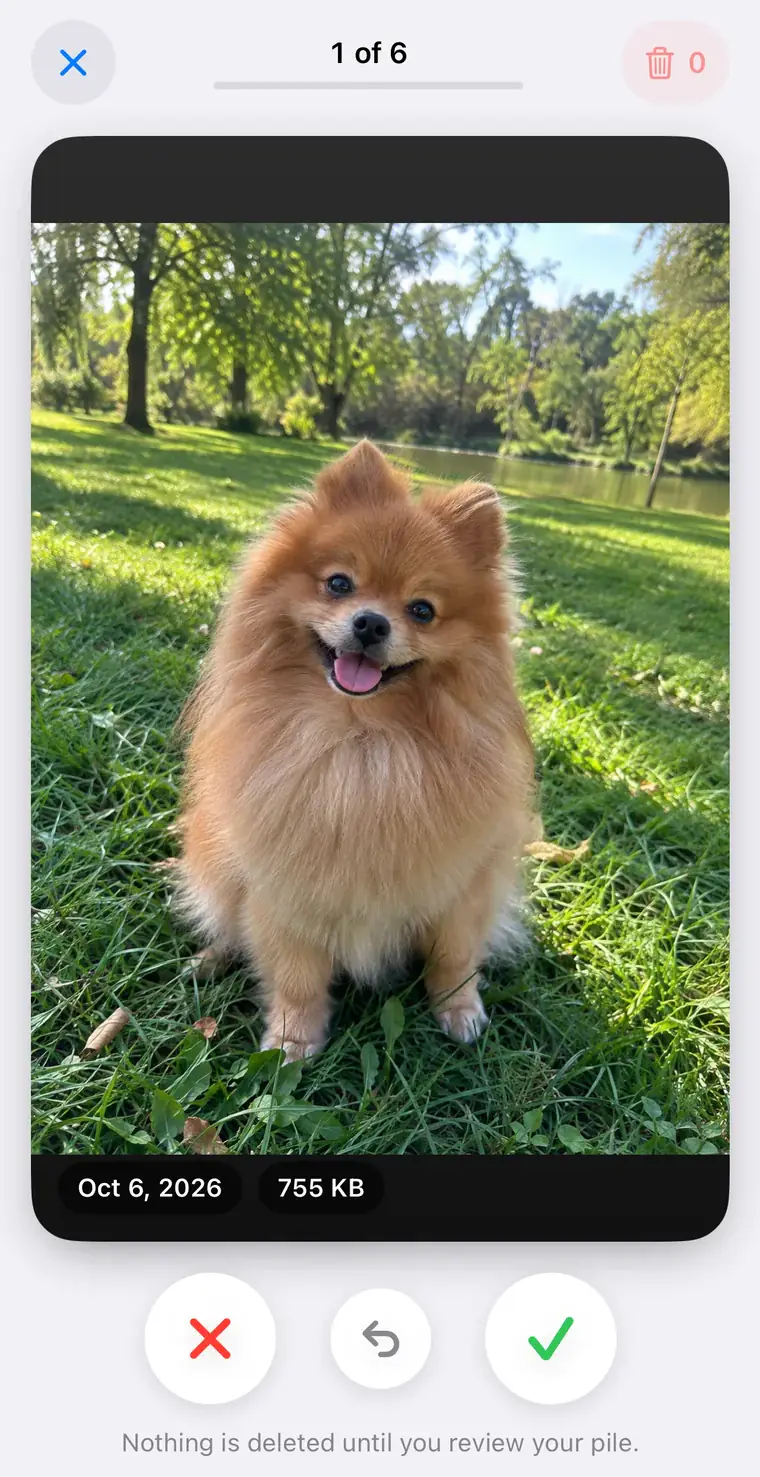
We make PhotoCleanse, so weigh this section with that in mind. In a grid, every screenshot is a tiny gray rectangle of text, and deciding means opening each one. PhotoCleanse’s Swipe tab has a Screenshots deck that shows them one at a time at full size, newest first, up to 30 per deck.
Swipe left to mark a screenshot for deletion and right to keep it; Undo takes back the last decision. Favorites and hidden photos are never offered, so favoriting the screenshots you need protects them, and a screenshot you kept isn’t offered again. Screen recordings aren’t part of the deck.
Nothing is deleted while you swipe. When the deck is done, review the marked pile, tap any screenshot to keep it after all, and delete the rest in one go. iOS asks you to confirm, and deleted screenshots go to Recently Deleted for 30 days. Everything happens on your iPhone; screenshots aren’t uploaded.
The free plan includes one Swipe deck a month of any kind; PhotoCleanse Pro unlocks unlimited decks. Finishing a deck you started, reviewing the pile and deleting it are always free.
Questions about deleting screenshots
For help with the app, contact support
PhotoCleanse is made by Vlad.
How do I delete all screenshots on my iPhone at once?
Open the Screenshots collection: on iOS 26 and 27, open Photos, tap Collections, scroll to Media Types and tap Screenshots. Tap Select, then slide your finger across the thumbnails to select many at once. Tap the Trash button and confirm. The screenshots go to Recently Deleted, where they stay for 30 days unless you delete them from there too.
Where are screenshots stored on an iPhone?
In your photo library in the Photos app, together with your photos. Photos also collects them in Screenshots under Media Types. A full-page screenshot you save as a PDF goes to the Files app instead.
Why can’t I delete screenshots on my iPhone?
If the Trash button is gray, the photos were probably added by syncing from a computer. Apple says those can’t be deleted in the Photos app on the iPhone; stop syncing them from the computer instead. Screenshots you took on the iPhone itself can always be deleted.
Why didn’t my storage go down after deleting screenshots?
Deleted screenshots move to Recently Deleted and keep using space for 30 days. To get the space back now, open Recently Deleted under Utilities, tap Select, choose the screenshots and delete them there. That removes them for good.
How do I delete a screenshot right after taking it?
On iOS 26 and 27, the screenshot opens full screen by default. Use the cancel or delete button in the preview and it isn’t kept. If you prefer the small thumbnail in the corner, go to Settings › General › Screen Capture and turn off Full-Screen Previews.
Does deleting screenshots on my iPhone delete them from iCloud?
Yes, if iCloud Photos is on. Apple says a photo deleted on one device is deleted on every device signed in with the same Apple Account. Save any screenshot you need somewhere else first.
Can PhotoCleanse delete my screenshots?
PhotoCleanse, which we make, has a Screenshots deck in its Swipe tab: your screenshots one at a time, newest first, up to 30 per deck. Swipe left to mark one for deletion and right to keep it. Nothing is deleted until you review the marked pile and confirm in iOS. The free plan includes one deck a month; PhotoCleanse Pro unlocks unlimited decks.
Related guides

Try PhotoCleanse
on your iPhone
Swipe through your screenshots, then delete the pile.
For iPhone · Optional Pro subscription
Not for videos or Android phones: PhotoCleanse cleans up photos only.

Scan with your iPhone camera
Opens the App Store