Guide
How to free up iPhone storage without deleting photos
You can keep every photo and still get space back. If you use iCloud Photos, turn on Optimize Storage so your iPhone keeps smaller versions while iCloud keeps the originals. Then switch the camera to High Efficiency, clear photos and videos out of Messages, offload apps you don’t use, and replace your largest photos with compressed copies.
Updated

Compression and duplicate cleanup
You confirm before deleting.
Compare
Every way to keep your photos and free space
Each method keeps your photos, but each frees a different kind of space and has a cost. The first one usually gives the most back if your library is large.
| Method | Photos stay? | Space comes from | Trade-off |
|---|---|---|---|
| Optimize Storage (iCloud Photos) | Yes, full originals stay in iCloud | Full-size originals on the iPhone | An iCloud plan big enough for your library |
| High Efficiency camera format | Yes | New photos and videos only | Some older devices and PCs open HEIF and HEVC less easily |
| Lower video resolution or frame rate | Yes | New videos only | Less detail in future videos |
| Clean up Messages attachments | Yes, your Photos library isn’t touched | Photos and videos inside chats | Attachments you delete leave that chat |
| Offload unused apps | Yes | App files | The app reinstalls when you tap it |
| Copy photos to a Mac or PC | Yes, on the computer | The copies you remove from the iPhone | Only safe with iCloud Photos off |
| Replace large photos with compressed copies | Yes, as smaller copies | The bigger original files | The originals go to Recently Deleted |
Start here
Where did my iPhone storage go?
iPhone Storage in Settings shows where it went. Open Settings, tap General, then tap iPhone Storage: the bar at the top splits your storage by category and the list below shows each app with its size. If iOS shows recommendations, tap Show All and read each one before you tap Enable.
Look at the order. If Photos is at the top, the iCloud and compression steps below matter most. If Messages, a streaming app with downloaded shows or another app is at the top, start there: you can get gigabytes back without touching a single photo.
Apple Support: How to check the storage on your iPhone and iPad
Step by step
How to free up space and keep your photos
Steps 1 to 5 don’t delete anything from your Photos library. Step 6 replaces large files with smaller copies of the same pictures, and you confirm it first.
- 01
Turn on Optimize Storage
Go to Settings, tap your name, then iCloud. Under Saved to iCloud, tap Photos, turn on iCloud Photos if it’s off, tap iPhone Storage and choose Optimize Storage. In iOS 26 or earlier, choose Optimize Storage on the Photos screen. Your iPhone then keeps space-saving versions and iCloud keeps the full-resolution originals. iOS shrinks the library only when the iPhone needs space, starting with the photos and videos you open least, so the space comes back over time. Your library has to fit in your iCloud storage.
- 02
Save new photos in High Efficiency
Go to Settings, tap Camera, then Formats, and choose High Efficiency. Apple says HEIF photos and HEVC videos use less space than JPEG and H.264 with the same visual quality. It applies to what you shoot from now on, not to photos you already have.
- 03
Record video at a sensible size
Videos usually take far more space than photos. Go to Settings, tap Camera, then Record Video, and pick a lower resolution or frame rate for everyday clips. Apple notes that faster frame rates and higher resolutions make larger files. You can still switch to 4K in the Camera app for a moment that matters.
- 04
Clear photos and videos out of Messages
Open a conversation, tap the contact or group icon at the top, then tap Photos. Tap Edit, then Select, choose the attachments you don’t need and delete them. Your Photos library isn’t touched. To stop chats piling up, go to Settings, tap Apps, then Messages, and set Keep Messages to 1 Year or 30 Days; that deletes whole conversations, attachments included, once they reach that age.
- 05
Offload apps you don’t use
In iPhone Storage, tap an app and choose Offload App: the app goes, its documents and data stay, and tapping its icon reinstalls it. To do it automatically, go to Settings, tap Apps, then App Store, and turn on Offload Unused Apps. Remove shows you’ve already watched from streaming apps too.
- 06
Replace large photos with compressed copies
A few big photos can take as much space as hundreds of small ones. PhotoCleanse’s Compress tab lists the photos it can shrink, largest first, with the estimated savings. It saves smaller copies as new photos in an album called Compressed by PhotoCleanse. The space comes back only when the originals are deleted, which happens only if you turn that on and confirm in iOS.
Sources: Apple Support, Set up and use iCloud Photos, Using HEIF or HEVC media on Apple devices, Record a video with your iPhone camera, Delete messages and attachments in Messages and Manage storage on iPhone. Settings paths are from iOS 27; older versions may differ.
Keep photos on a computer instead
If you don’t want to pay for iCloud, you can keep your library on a Mac or PC and leave only recent photos on the iPhone. Check one setting first: with iCloud Photos on, Apple says a photo you delete on one device is deleted everywhere you use iCloud Photos. Deleting it from the iPhone would delete the iCloud copy too, and on a Mac signed in to the same library, that copy as well.
So use this route only with iCloud Photos off on the iPhone. On a Mac, connect the iPhone with a cable, open Photos, choose the iPhone in the sidebar and import. On a Windows PC, install the Apple Devices app from the Microsoft Store, connect the iPhone and import with the Microsoft Photos app.
Open a few imported photos and videos on the computer, make sure you have a second backup, then delete what you copied from the iPhone and empty Recently Deleted.
Where PhotoCleanse fits
Can I make photos smaller instead of deleting them?
Yes: you can replace large photos with smaller copies of the same pictures, but the space comes back only once the originals are deleted.
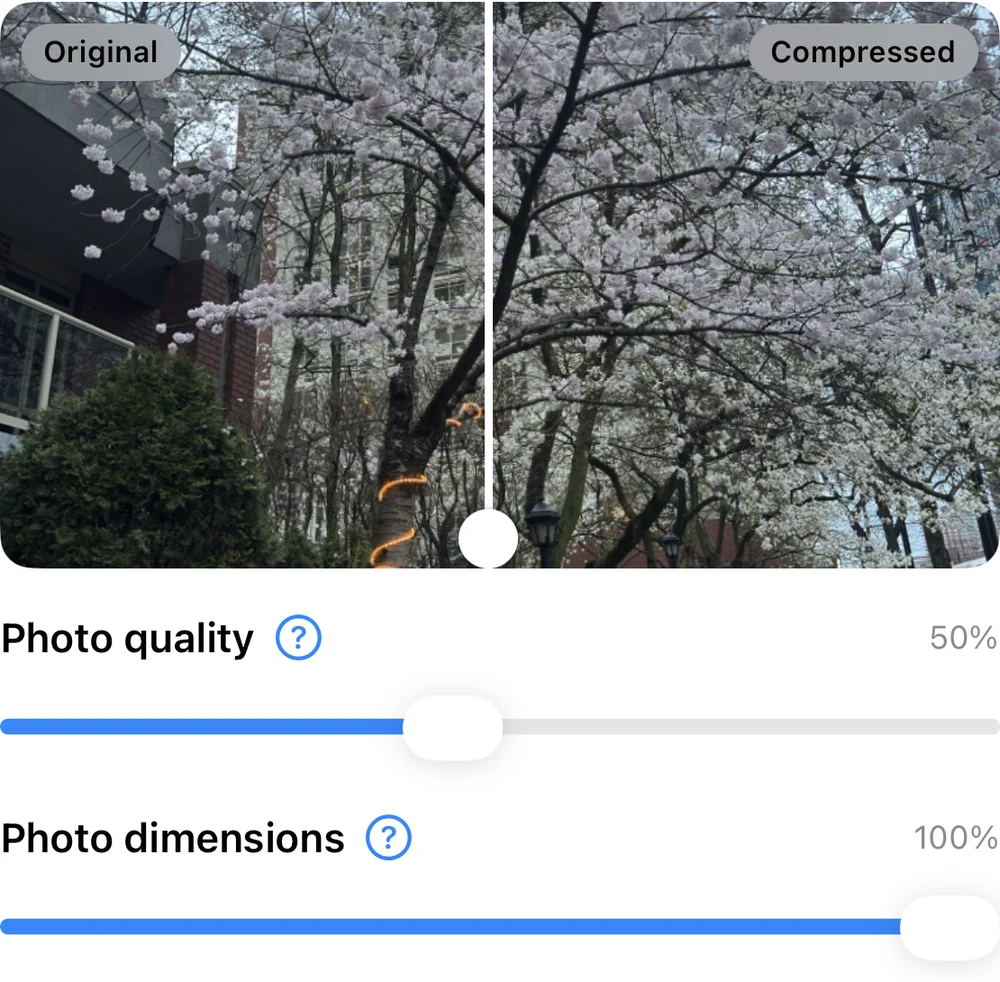
We make PhotoCleanse, so read this with that in mind. Its compression is for people who want to keep every picture but don’t need every original at full size. You choose the photos, adjust photo quality and dimensions with a before-and-after preview, and PhotoCleanse writes a verified smaller copy for each one. It works on your iPhone without uploading your photos.
It handles ordinary single-frame JPEG, HEIC and PNG photos. Live Photos, RAW, Portrait photos with depth and other compound photos are skipped, so a richer original is never replaced by a flat copy. It doesn’t compress videos. When originals are deleted, each copy keeps its original’s Favorite state and album memberships, and the originals wait in Recently Deleted for 30 days.
The free plan includes 1 compressed photo, 3 duplicate-group cleanups and 1 Swipe deck a month. PhotoCleanse Pro, a weekly or yearly subscription, removes the monthly limits. Duplicate copies are the other space you can free without losing a picture: the duplicate photos guide covers them.
What not to do
- Don’t delete photos from the iPhone to “move them to iCloud”. With iCloud Photos on, the deletion syncs and the iCloud copy goes too. Optimize Storage is the way to keep originals in iCloud only.
- Don’t turn off iCloud Photos to free space. With Optimize Storage on, the iPhone may hold only smaller versions, and the full-resolution originals are in iCloud.
- Don’t expect space right after you delete or compress. Photos you delete, including originals replaced by compressed copies, stay in Recently Deleted for 30 days. The iPhone storage full guide explains what to check when the space doesn’t come back.
Questions about freeing up space without deleting photos
For help with the app, contact support
PhotoCleanse is made by Vlad.
How can I free up space on my iPhone without deleting photos?
Start with Settings, General, iPhone Storage to see what is large. If Photos is, turn on Optimize Storage with iCloud Photos so the iPhone keeps smaller versions while iCloud keeps the originals. Then clean up photos and videos in Messages, offload apps you don’t use and switch the camera to High Efficiency so new photos take less space.
Does Optimize iPhone Storage lower the quality of my photos?
Not the originals. Apple says the iPhone keeps space-saving versions while iCloud keeps the full-resolution originals, and you can download an original when you need it. The iPhone optimizes the library only when it needs more space, starting with the photos and videos you open least.
If I copy my photos to a computer, can I delete them from my iPhone?
Only if iCloud Photos is off. With iCloud Photos on, Apple says a photo you delete on one device is deleted everywhere you use iCloud Photos, including the iCloud copy. With it off, import the photos, check that they open on the computer and have a second backup, then delete them from the iPhone.
Will changing the camera format shrink the photos I already have?
No. Settings, Camera, Formats and Record Video only change how new photos and videos are saved. Apple says HEIF and HEVC use less space than JPEG and H.264 at the same visual quality, and that faster frame rates and higher resolutions make larger video files.
Do photos in Messages count as Photos storage?
No. iPhone Storage counts messages and their attachments under Messages. A photo that only lives in a chat isn’t in your Photos library, and deleting it from the chat doesn’t touch your library. If you use Messages in iCloud, deleting it removes it from your other devices too.
Does compressing a photo free up space?
Only once the original is gone. Compression saves a smaller copy as a new photo, so at first you have both. In PhotoCleanse, which we make, the originals are deleted only if you turn that on and confirm in iOS, and they wait in Recently Deleted for 30 days before the space comes back.
Should I buy more iCloud storage to free up my iPhone?
A bigger iCloud plan frees iPhone space only together with Optimize Storage, because iCloud storage and iPhone storage are separate. If you’d rather not pay for iCloud, keep a local copy on a computer with iCloud Photos off, or clean up duplicates and photos you don’t need.
Related guides

Try PhotoCleanse
on your iPhone
Find large photos and duplicates for free.
For iPhone · Optional Pro subscription
Not for videos or Android phones: PhotoCleanse cleans up photos only.

Scan with your iPhone camera
Opens the App Store