Savings vary by photo
The savings figure is an estimate. Results depend on each photo and your settings. Lower quality or smaller dimensions can remove visible detail. If a photo wouldn’t get smaller, it’s skipped and left as it is.
Photo compression for iPhone
To compress photos on iPhone with PhotoCleanse, open the Compress tab to see the photos it can shrink, largest first, with each file size. With Pro, set the quality and dimensions, compare a photo before and after, and save smaller copies. Your originals stay unless you choose to delete them.

Free: find your largest photos
Pro: save compressed copies
How it works
PhotoCleanse lists the photos stored on your iPhone that it can compress, largest first. Each photo shows its file size.
Tap the photos you want to shrink, or select them all. Tap the eye button to view a photo full screen. With Pro, the app shows the estimated savings for your selection.
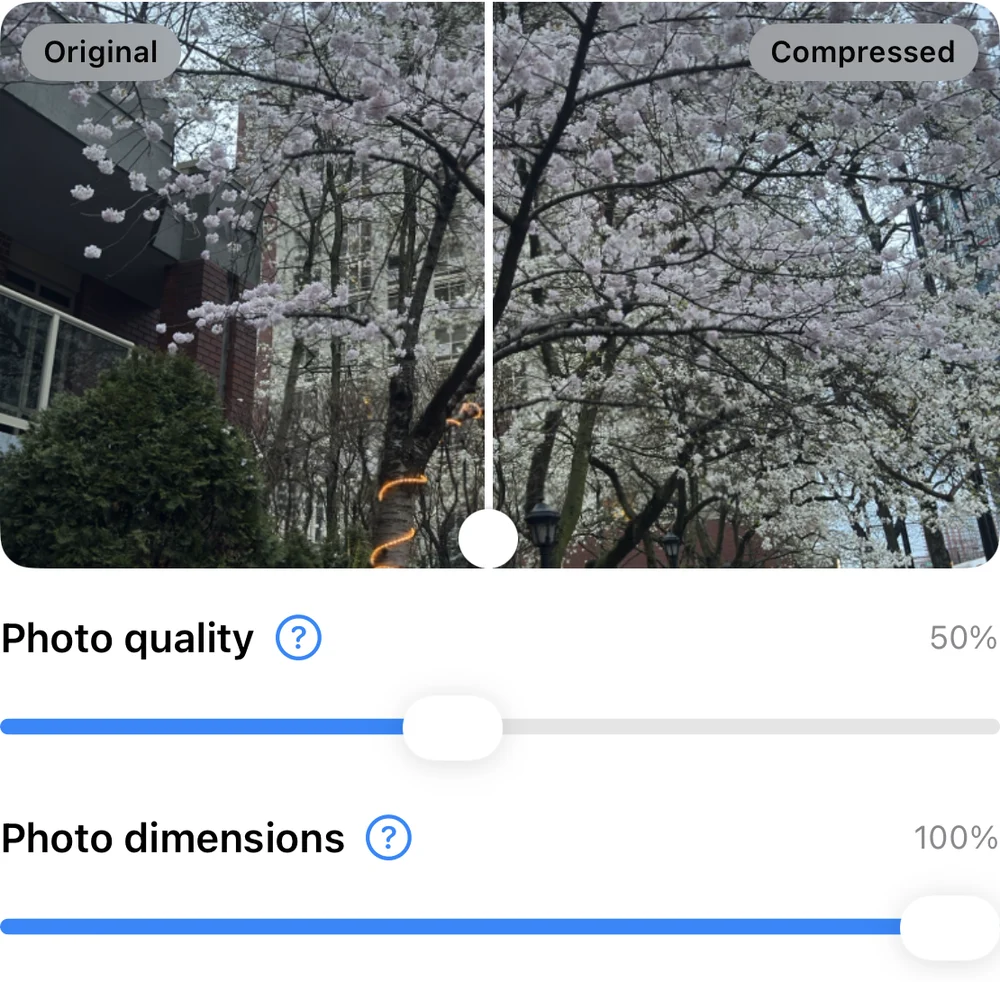
Set Photo quality and Photo dimensions. A preview splits one of the selected photos into Original and Compressed. Drag the divider to check detail before you save. Other photos can compress differently. Keep each photo’s original format or save copies as JPEG, and choose whether to delete the originals afterward.
PhotoCleanse saves each smaller copy as a new photo in an album called “Compressed by PhotoCleanse”. iOS can’t replace a photo in place, so the original stays in your library unless you chose to delete it.
When the run finishes, you see how many photos were compressed, how many originals were deleted, and how many were skipped or failed.
You can find your largest photos and see their file sizes for free. Estimated savings, compression settings, the Original and Compressed preview, and saving copies require PhotoCleanse Pro.
Pro is available as a weekly or yearly subscription. Check the app or App Store for prices in your region. Pro also adds deletion across duplicate groups and unlimited Swipe decks.
| Compression | Free | Pro |
|---|---|---|
| See eligible photos and their sizes, largest first | Included | Included |
| Select photos and view them full screen | Included | Included |
| See the estimated savings for a selection | Not included | Included |
| Adjust quality, dimensions and format | Not included | Included |
| Compare a selected photo as Original and Compressed | Not included | Included |
| Save compressed copies | Not included | Included |
| Delete originals that have a saved copy | Not included | Included |
Compression creates one still image for each photo. To avoid losing motion, depth or RAW data, PhotoCleanse only offers ordinary still photos.
A photo with HDR data is saved only as HEIC when that data can be kept. Otherwise it’s skipped. Compression needs the full photo on your iPhone, so originals stored only in iCloud aren’t compressed.
The savings figure is an estimate. Results depend on each photo and your settings. Lower quality or smaller dimensions can remove visible detail. If a photo wouldn’t get smaller, it’s skipped and left as it is.
Originals are deleted only if you turn on Delete Originals After Compression, and only for photos with a saved copy. iOS asks you to confirm, and deleted originals go to Recently Deleted. A copy keeps its original’s Favorite status and albums. If an original changed after compression, it’s kept.
PhotoCleanse compresses photos on your iPhone without uploading them. It uses Firebase for analytics and crash reports, and RevenueCat for subscriptions.
Read the privacy policyFor help with the app, contact support
It can. Lower quality or smaller dimensions remove detail, and how visible that is depends on the photo. With Pro, you can compare a selected photo as Original and Compressed before you save. If a photo wouldn’t get smaller, PhotoCleanse skips it.
No. iOS doesn’t let apps replace a photo in place, so each smaller copy is saved as a new photo in the “Compressed by PhotoCleanse” album. Originals are deleted only if you turn on Delete Originals After Compression and confirm in iOS. Deleted originals go to Recently Deleted.
Saving a copy adds a photo, so the space comes back only after you delete the original. Deleted photos stay in Recently Deleted for 30 days and use space on your iPhone until Apple removes them or you delete them from that album.
No. Compression saves one still image per photo, so PhotoCleanse doesn’t offer Live Photos, RAW or RAW+JPEG photos, Portrait photos with depth data, animated images or videos. Their originals would lose motion, depth or RAW data.
You can see which photos can be compressed and their file sizes for free. Estimated savings, compression settings, the Original and Compressed preview, and saving copies need PhotoCleanse Pro, a weekly or yearly subscription.
Only when the full original is on your iPhone. PhotoCleanse doesn’t compress originals stored only in iCloud. With iCloud Photos on, compressed copies sync like any new photo, and deleting an original also removes it from your other devices.
Duplicates and similar shots are often the first place to look. Free users can delete them one group at a time.

Find your largest photos for free.
For iPhone · Optional Pro subscription

Scan with your iPhone camera
Opens the App Store