Gemini Photos alternative
Gemini Photos by MacPaw: what replaced it and the alternatives
Gemini Photos by MacPaw, the iPhone photo cleaner launched in 2018, became CleanMy®Phone in March 2024. Users moved over automatically at no extra cost, active subscribers keep their old price, and there’s no way back to the old app. If you liked it, CleanMy®Phone is its direct successor. If you want something else, the Photos app merges exact copies for free, and PhotoCleanse, which we make, groups duplicates and similar shots, lets you swipe through photos and compresses large ones on your iPhone.
Updated

3 free group cleanups a month
You confirm before deleting.
What changed
What happened to Gemini Photos
2018. MacPaw released Gemini Photos for iPhone, free with in-app purchases. It scanned the photo library, sorted photos into Similar, Clutter and Other, and suggested the best shot to keep in each set.
March 5, 2024. MacPaw announced that Gemini Photos becomes CleanMy®Phone, a cleaner for iPhone and iPad that adds AI categories that sort photos into folders and a network speed test. CleanMy®Phone needs iOS 16 or iPadOS 16 or later.
The switch. According to MacPaw’s support page, every Gemini Photos user moved to CleanMy®Phone automatically, at no extra cost, and the photos on the Ignore list were carried over. CleanMy®Phone has new pricing, but people with an active Gemini Photos subscription keep the old price. You can’t go back to Gemini Photos, and MacPaw points anyone unhappy with the change to a refund request.
So most people searching for Gemini Photos today either want the old app back, which isn’t possible, or want to know whether to stay with CleanMy®Phone or move to something else.
Side by side
Gemini Photos and PhotoCleanse compared
The left column comes from MacPaw’s Gemini Photos FAQ. We make PhotoCleanse, so the right column is our app. We haven’t tested CleanMy®Phone for this page, so it isn’t in the table.
| Job | Gemini Photos | PhotoCleanse |
|---|---|---|
| Copies of the same photo | Part of Similar | Duplicate groups; Exact Matches shows only copies |
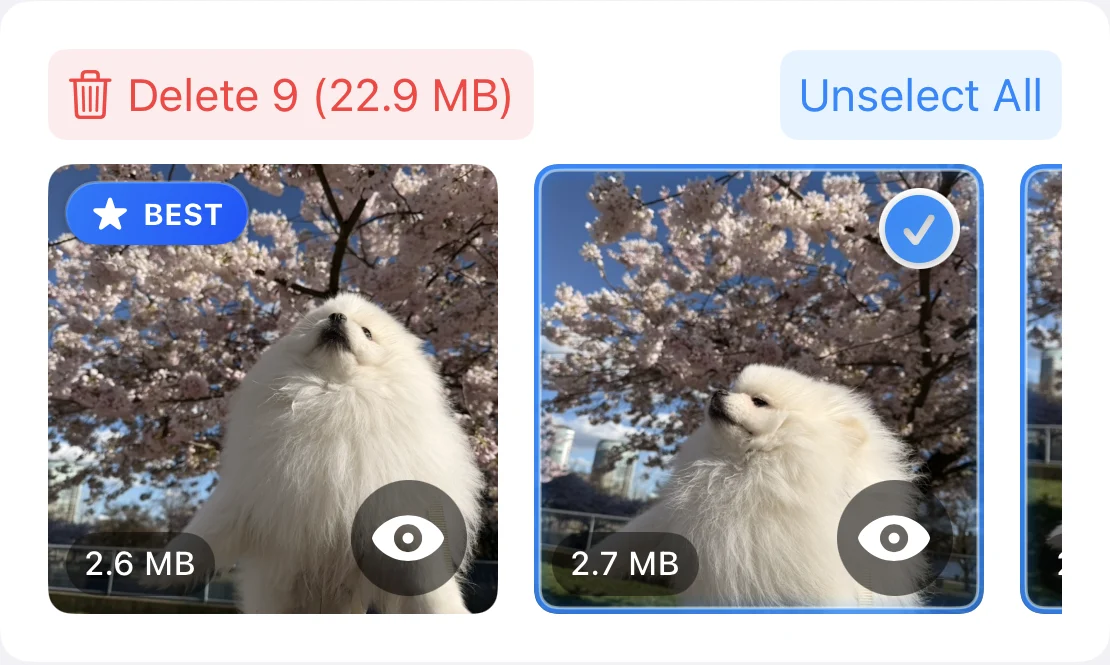
| Similar shots and retakes | Similar sets with a Best Result | Groups with a suggested BEST photo; Balanced and More Matches levels |
| Favorites | Never selected automatically | Never selected automatically, never shown in Swipe |
| Screenshots | Clutter, preselected for removal | Screenshots Swipe deck, newest first, nothing preselected |
| Blurry photos | Clutter: Blurred | Not detected; swipe through them |
| Photos of receipts and notes | Clutter: Notes | Not detected; swipe through them |
| Everything else | Other: swipe to keep or delete | Swipe decks of 30: Shuffle or one month |
| Large photos | Not in MacPaw’s FAQ | Compress: smaller copies, originals deleted only if you choose |
| After deleting | Recently Deleted for 30 days | Recently Deleted for 30 days |
| Price | Free with in-app purchases | Free plan with monthly limits; Pro weekly or yearly |
The biggest gap: PhotoCleanse doesn’t sort out blurry photos or photos of text the way Gemini Photos’ Clutter did. What it adds is a choice of how strict duplicate matching is, and compression for photos you want to keep at a smaller size.
Which one
Stay with CleanMy®Phone, use Photos, or switch?
Stay with CleanMy®Phone if
- You still pay the old Gemini Photos price and the app does what you need
- You relied on the Blurred and Notes lists
- You want one app for iPhone and iPad
Use only the Photos app if
- Your clutter is mostly exact copies, such as saved images and imports
- You want nothing extra installed and no subscription
- You’re fine deleting one-off photos by hand with Select
Try PhotoCleanse if
- Your library has rows of near-identical shots, bursts and retakes
- You liked swiping through Other and want decks that remember what you kept
- You’d rather shrink large photos than delete them
- You want to try every feature on a free plan before paying
Before you switch
- Another app can’t read CleanMy®Phone’s Ignore list or Sensitive folder
- Mark the photos you protected there as Favorites in Photos; PhotoCleanse never selects Favorites automatically
- A CleanMy®Phone subscription renews until you cancel it
Step by step
How to move from Gemini Photos to PhotoCleanse
The order matters: exact copies first, then similar shots, then one-off clutter, then compression. Each step leaves less for the next.
- 01
Check your subscription
Open Settings, tap your name, then Subscriptions. If CleanMy®Phone is listed and you’re leaving it, tap it and cancel. If you plan to keep both apps for a while, leave it.
- 02
Protect what matters
In Photos, tap the heart on photos you never want suggested for deletion. PhotoCleanse never selects Favorites automatically and doesn’t show them in Swipe.
- 03
Merge exact copies in Photos
Open Photos, tap Collections, scroll to Utilities and tap Duplicates, then tap Merge on each set. Photos keeps one copy and moves the others to Recently Deleted. The album appears on iOS 16 and later, and only when Photos finds copies.
- 04
Clean up similar shots
Install PhotoCleanse and allow full photo library access. Open Duplicate Photos: each group has a suggested BEST photo, and you choose which of the others to delete. Options switches between Exact Matches, Balanced and More Matches. Delete and confirm in iOS.
- 05
Swipe through the clutter
In the Swipe tab, start the Screenshots deck, then a month or Shuffle. Swipe left to mark a photo, right to keep it. Check the pile in Review, tap Delete and confirm once.
- 06
Compress what you keep
In Compress, select large photos and save smaller copies to the Compressed by PhotoCleanse album. Originals are deleted only if you turn that on and confirm.
Deleted photos stay in Recently Deleted for 30 days, so the storage comes back after that, or sooner if you empty the album yourself. The free plan covers 3 duplicate-group cleanups, 1 photo compression and 1 Swipe deck a month; PhotoCleanse Pro removes the limits.
Not Google Gemini
Search for “Gemini Photos” today and most results are about Google: the Gemini assistant’s image tools and the Gemini features in Google Photos. Those have nothing to do with MacPaw’s app.
If you came here looking for Google’s tools, this page won’t help. If you used an iPhone app that sorted your camera roll into Similar, Clutter and Other, that was MacPaw’s Gemini Photos, and the sections above are about it.
What happened to Gemini Photos?
MacPaw replaced Gemini Photos with CleanMy®Phone, announced on March 5, 2024. Gemini Photos users moved to CleanMy®Phone automatically at no extra cost, and photos on the Ignore list were carried over. MacPaw says Gemini Photos no longer exists in its original form.
Can I still download Gemini Photos?
No. MacPaw says it’s impossible to revert to Gemini Photos once you’re on CleanMy®Phone, because Gemini Photos has been entirely replaced. If CleanMy®Phone doesn’t suit you, MacPaw says you can request a refund, or you can switch to another photo cleaner.
Do I pay more for CleanMy®Phone than I did for Gemini Photos?
Not if you had an active Gemini Photos subscription. MacPaw introduced new pricing for CleanMy®Phone but says it keeps the old price for users with active Gemini Photos subscriptions. You can see what you pay and when it renews in Settings, under your name, then Subscriptions.
Is there a free Gemini Photos alternative?
The Photos app is free: on iOS 16 and later its Duplicates album under Utilities merges copies of the same photo. It doesn’t list most similar shots or retakes. PhotoCleanse, which we make, is a free download whose free plan cleans up 3 duplicate groups, compresses 1 photo and opens 1 Swipe deck each month; PhotoCleanse Pro removes the limits.
Does PhotoCleanse find blurry photos and screenshots like Gemini Photos did?
Screenshots, yes: they have their own Swipe deck, where you swipe left to mark one for deletion and right to keep it. Blurry photos and photos of text, no: PhotoCleanse doesn’t detect them automatically. You find them by swiping through a month or a Shuffle deck.
Does PhotoCleanse upload my photos?
No. PhotoCleanse finds duplicates, runs Swipe and compresses photos on your iPhone, and your photos aren’t uploaded. It needs full access to your photo library so a scan can compare every photo. It deletes nothing until you confirm in iOS.
Is Gemini Photos the same as Google Gemini?
No. Gemini Photos was MacPaw’s photo cleaner for iPhone, released in 2018. Google Gemini is Google’s AI assistant, and “Gemini in Photos” refers to features inside Google Photos. They aren’t related.
Sources: MacPaw’s From Gemini Photos to CleanMy®Phone, CleanMy®Phone announcement, Gemini Photos FAQ and Gemini Photos release post; Apple’s Merge duplicate photos and Cancel a subscription from Apple.
Related guides

Try PhotoCleanse
on your iPhone
Clean up 3 duplicate groups a month for free.
For iPhone · Optional Pro subscription
Not for videos or Android phones: PhotoCleanse cleans up photos only.

Scan with your iPhone camera
Opens the App Store