Swipe photo cleaner for iPhone
Swipe to delete photos on iPhone
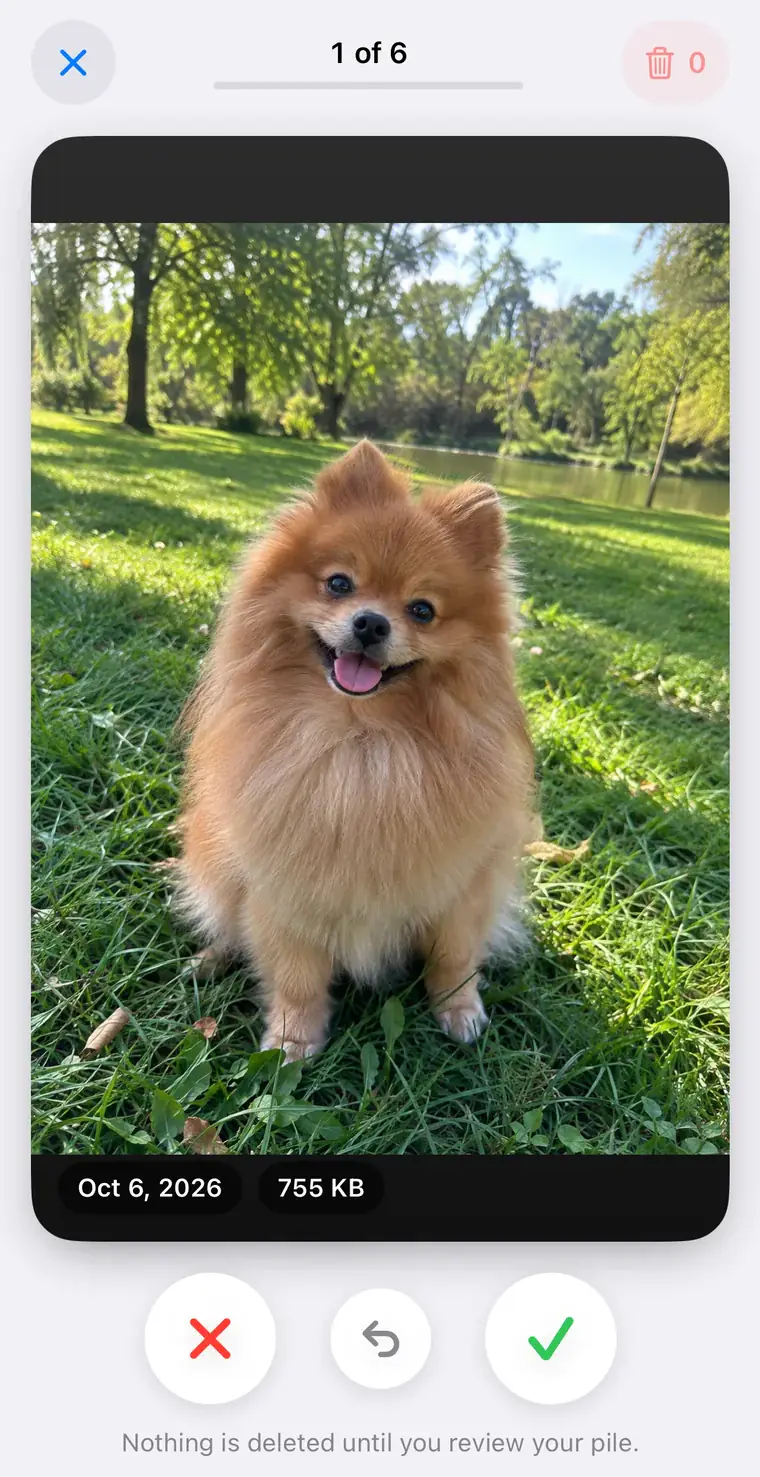
To swipe through your photos on iPhone, open the Swipe tab in PhotoCleanse and start a deck of up to 30 photos. Swipe left to mark a photo for deletion and right to keep it. Nothing is deleted while you swipe: you check the marked photos in Review, tap Delete and confirm once in iOS. Deleted photos go to Recently Deleted for 30 days.
Updated

1 free deck a month
You confirm before deleting.
Two ways
Photos app or a swipe app?
You can delete photos in the Photos app, one at a time or by selecting several. A swipe app shows one photo at a time and remembers what you’ve decided, so you can work through years of photos a deck at a time. We make PhotoCleanse, so the right column is our app.
| What you get | Photos app | PhotoCleanse Swipe |
|---|---|---|
| How you decide | Open each photo and tap Trash, or select several | Swipe left to delete, right to keep |
| Confirming deletion | For each photo or selection | Once for the whole pile |
| Changing your mind | Recover from Recently Deleted | Undo, or tap a photo in Review to keep it |
| Photos you already kept | Shown again as you scroll | Not offered again |
| Favorites | Can be deleted | Never shown |
| Deleted photos | Recently Deleted for 30 days | Recently Deleted for 30 days |
| Price | Free | 1 deck a month free |
Step by step
How to swipe through photos in PhotoCleanse
Swipe is the second tab, between Duplicate Photos and Compress. The badge on the tab shows how many photos are waiting to be deleted.
- 01
Choose a deck
Tap Start Swiping on the Shuffle card for random photos, or pick a deck from the list: Screenshots, or one month of photos, newest month first. Each deck holds up to 30 photos you haven’t reviewed yet and shows how much of it you’ve done.
- 02
Swipe left or right
Swipe left, or tap Delete, to mark a photo for deletion. Swipe right, or tap Keep, to keep it. Tap Undo to go back one card, and tap the photo to view it full screen. The top bar shows your place in the deck and how many photos are marked.
- 03
Finish or pause the deck
At the end you see how many photos you reviewed, kept and marked. Tap Review and Delete, or Next Deck to keep going. If you close a deck halfway, it resumes where you stopped.
- 04
Check the pile
Review shows every marked photo in a grid with their approximate total size. Tap a photo to keep it after all, or tap Keep All to empty the pile.
- 05
Delete and confirm
Tap Delete. iOS asks you to confirm once for the whole pile, and the photos move to Recently Deleted, where you can recover them for 30 days.
The free plan includes one deck a month of any kind. Resuming a deck you started, reviewing the pile and deleting it are never locked. PhotoCleanse Pro unlocks unlimited decks, along with unlimited duplicate cleanup and compression.
Which deck to start with
Screenshots is the easiest first deck. It runs newest first, and most screenshots are short-lived: boarding passes, confirmation codes, maps, memes you already sent. Decisions take a second each. Our guide to deleting screenshots on iPhone also covers clearing them in Photos and keeping new ones from piling up.
A month runs in date order, so a holiday or a busy week stays together and you can compare shots of the same moment as you go. Start with a month that took a lot of photos, such as a trip, a birthday or a new pet.
Shuffle draws photos at random from your whole library. It’s a good daily habit once the obvious clutter is gone, and it often turns up old photos you forgot about.
Each deck stops at 30 photos, which takes a few minutes. Short decks keep decisions quick; after a long session it’s easy to start keeping everything.
What to swipe left on
Most camera-roll clutter isn’t duplicates. It’s photos you took for a moment and never looked at again. A quick checklist:
Usually safe to delete
- Blurry, dark or accidental pocket photos
- Screenshots of codes, tickets and directions you no longer need
- Photos of receipts, parking spots and whiteboards after you’ve used them
- Product photos you took to compare prices
- Images saved from chats and memes you’ve already shared
Worth a second look
- The only photo of a person, place or pet
- Documents you may need again, such as IDs, warranties or prescriptions
- Photos that look plain now but mark a date, like a first apartment
- Shots of people who appear in few other photos
When unsure, swipe right. You can always delete a photo later in the Photos app, and kept photos won’t come back in Swipe decks to ask again.
Without an app
Delete photos in the Photos app
To delete one photo, open it in Photos, tap the Trash button, then tap Delete Photo. To delete several, tap Select, tap the photos or slide your finger across them, then tap the Trash button and confirm.
This works well when you know which photos you want gone. For a large library it means scrolling past the same photos again each time, which is the problem swipe apps solve by tracking what you’ve already kept.
If the Trash button is gray, the photo may have been synced to your iPhone from a computer. Apple says you might need to stop syncing photos from that computer before you can delete it on the iPhone.
Swipe or duplicate cleanup?
Use both, in this order. Duplicate cleanup handles copies and near-identical shots in groups, so you don’t swipe through five versions of the same photo one by one. PhotoCleanse scans your library, groups copies and similar shots, and suggests the photo to keep in each group.
Swipe is for what’s left: one-off photos that aren’t like any other but that you don’t need. When a duplicate scan finds no more groups, the Duplicate Photos screen offers a shortcut to Swipe.
After you delete
PhotoCleanse deletes through Apple Photos, so Apple’s rules apply. Deleted photos stay in Recently Deleted for 30 days, then they’re removed for good. You can recover a photo from that album until then.
The storage comes back when the photos leave Recently Deleted, after 30 days or sooner if you delete them from that album yourself. If you use iCloud Photos, a photo you delete on your iPhone is also deleted on your other devices signed in with the same Apple Account.
If you changed a photo after swiping it, for example by editing it, PhotoCleanse doesn’t delete it. It goes back into your decks so you can decide on the new version.
Questions about swiping to delete photos
For help with the app, contact support
PhotoCleanse is made by Vlad.
Is there a swipe to delete photos app for iPhone?
Yes. Several App Store apps let you swipe left to delete and right to keep. PhotoCleanse, which we make, has a Swipe tab with decks of up to 30 photos: Shuffle, Screenshots or a single month. It also finds duplicate photos and compresses large ones.
Does swiping left delete the photo right away?
No. In PhotoCleanse, swiping left only marks the photo. Marked photos wait in a pile until you open Review, where you can tap any photo to keep it. Then you tap Delete and confirm once in iOS.
Can I undo a swipe?
Yes. Tap Undo to bring back the previous card and decide again. Before deleting, you can also tap a photo in Review to keep it, or tap Keep All to empty the pile. After deletion, photos stay in Recently Deleted for 30 days.
Is swiping through photos free?
The free plan includes one Swipe deck a month of any kind: Shuffle, Screenshots or a month of photos. PhotoCleanse Pro, a weekly or yearly subscription, unlocks unlimited decks. Finishing a deck you started, reviewing the pile and deleting it are always free.
Will I see the same photos again in the next deck?
Not the ones you kept. A photo you swipe right on isn’t offered again, so each deck holds photos you haven’t decided on yet. Favorites and hidden photos never appear, and a burst shows only its key photo.
Does it work with iCloud Photos?
Yes. If a photo is stored in iCloud, PhotoCleanse may download a screen-sized version so you can see it on the card; the full original isn’t downloaded. Deleting a photo with iCloud Photos on also removes it from your other devices signed in with the same Apple Account.
Does PhotoCleanse upload my photos?
No. Swipe runs on your iPhone, and your photos aren’t uploaded. PhotoCleanse needs full access to your photo library because a deck can draw from any photo in it.
Free up more space

Try PhotoCleanse
on your iPhone
Swipe through one deck a month for free.
For iPhone · Optional Pro subscription
Not for videos or Android phones: PhotoCleanse cleans up photos only.

Scan with your iPhone camera
Opens the App Store