Guide
How to delete duplicate photos on iPhone
To delete duplicate photos on iPhone, open Photos, tap Collections, scroll to Utilities and tap Duplicates, then tap Merge. To do every set at once, tap Select, then Select All, then Merge. Photos keeps one copy of each set and moves the rest to Recently Deleted. The album skips similar shots, like retakes of the same moment. To clean those up too, scan your library with PhotoCleanse and choose which photo to keep.
Updated

3 free group cleanups a month
You confirm before deleting.
Two ways
Photos app or a duplicate cleaner?
Start with the free Duplicates album in Photos. If your library still has rows of near-identical shots, a duplicate cleaner finds those too.
| What you get | Photos app | PhotoCleanse |
|---|---|---|
| Finds copies of the same photo | Included | Included |
| Finds similar shots, like retakes | Usually not | Included |
| Finds duplicate videos | Included | Photos only |
| Lets you choose which photo to keep | Photos picks | You pick |
| Cleans up many sets at once | Included | Included |
| When results appear | After indexing | While scanning |
| Price | Free | 3 groups a month free |
Method 1 · Built into iOS
Merge duplicates in the Photos app
The Duplicates album is available on iOS 16 and later. It lists photos and videos that Photos identifies as copies.
- 01
Open the Duplicates album
Open Photos, tap Collections, scroll down to Utilities and tap Duplicates. On iOS 18, scroll down below your library to Utilities. On iOS 16 and 17, tap Albums, then Duplicates under Utilities.
- 02
Check each set
Each set shows the copies side by side. Tap a photo to open it if you want a closer look before you merge.
- 03
Merge a set
Tap Merge next to a set, then tap Merge [number] Items to confirm. Photos keeps one photo and moves the other copies to Recently Deleted.
- 04
Merge many sets at once
Tap Select, choose the sets you want or tap Select All, then tap Merge and confirm. Check the sets first, since you can’t choose which copy Photos keeps.
Source: Apple Support, Merge duplicate photos and videos on iPhone. Merged copies stay in Recently Deleted for 30 days, so you can recover one if Photos kept the wrong version.
By iOS version
Where is the Duplicates album?
Apple moved the album twice. To check your version, open Settings, tap General, then About.
| iOS version | Where to tap |
|---|---|
| iOS 26 and iOS 27 | Photos › Collections › Utilities › Duplicates |
| iOS 18 | Photos › scroll down below your library › Utilities › Duplicates |
| iOS 16 and iOS 17 | Photos › Albums › Utilities › Duplicates |
| iOS 15 and earlier | No Duplicates album; it arrived in iOS 16 |
Before you merge
Which copy does Photos keep?
Merge doesn’t let you choose. When the copy matters, delete the others yourself.
Apple’s guide for iOS 16 and 17 explains what Merge does: it keeps the highest-quality version, combines the relevant data from all the copies into it, and moves the rest to Recently Deleted. The current guide for iOS 26 and 27 only says that Merge combines a set. Either way, you don’t pick the copy that stays.
That’s usually what you want. A photo saved back from Messages or a chat app is often a smaller copy of the original, and Merge keeps the better one. Look twice at a set in these cases:
- One copy is edited (cropped, filtered, straightened) and the other isn’t
- One copy is in an album you share with someone, or has a caption you wrote
- The set mixes a photo you took with one somebody sent you, and you want to keep the original
To keep a particular copy, tap the copy you don’t want, tap the Trash button and confirm. Deleted copies go to Recently Deleted either way, so you have 30 days to restore the wrong one.
| Method | Best for | Limit |
|---|---|---|
| Merge in the Duplicates album | Copies Photos has found | Photos chooses the copy it keeps |
| Delete one copy yourself | A set where you want a specific copy | One photo at a time |
| A duplicate cleaner app | Copies and similar shots together | Needs an app; check what it uploads |
Sources: Apple Support, Merge duplicate photos and videos on iPhone (iOS 17) and Delete photos on your iPhone or iPad.
If you don’t see the Duplicates album
The album appears only after Photos indexes your library and finds duplicates. Apple says indexing runs while your iPhone is locked and connected to power, and it can take up to a few days for a large library.
To check whether indexing is still running, open Photos, tap Library and scroll to the bottom. A status message appears there while your iPhone is indexing. If indexing has finished and there’s still no Duplicates album, Photos hasn’t found any duplicates.
That doesn’t mean your library has no near-duplicates. Retakes of the same moment usually aren’t listed, and PhotoCleanse groups those too. A burst is different again: it’s one stack in your library, and you trim it from inside the burst; our burst photos guide shows how.
More fixes: Duplicates album not showing, by iOS version · Apple’s guide to a missing Duplicates album
Method 2 · Duplicates and similar shots
Delete duplicates with PhotoCleanse
PhotoCleanse compares photo content on your iPhone and groups copies with similar shots of the same moment. Your photos aren’t uploaded.
- 01
Scan your library
Open Duplicate Photos. The scan starts with recent photos and shows groups as it finds them, so you can start reviewing before it finishes. Scanning never deletes anything.
- 02
Review a group
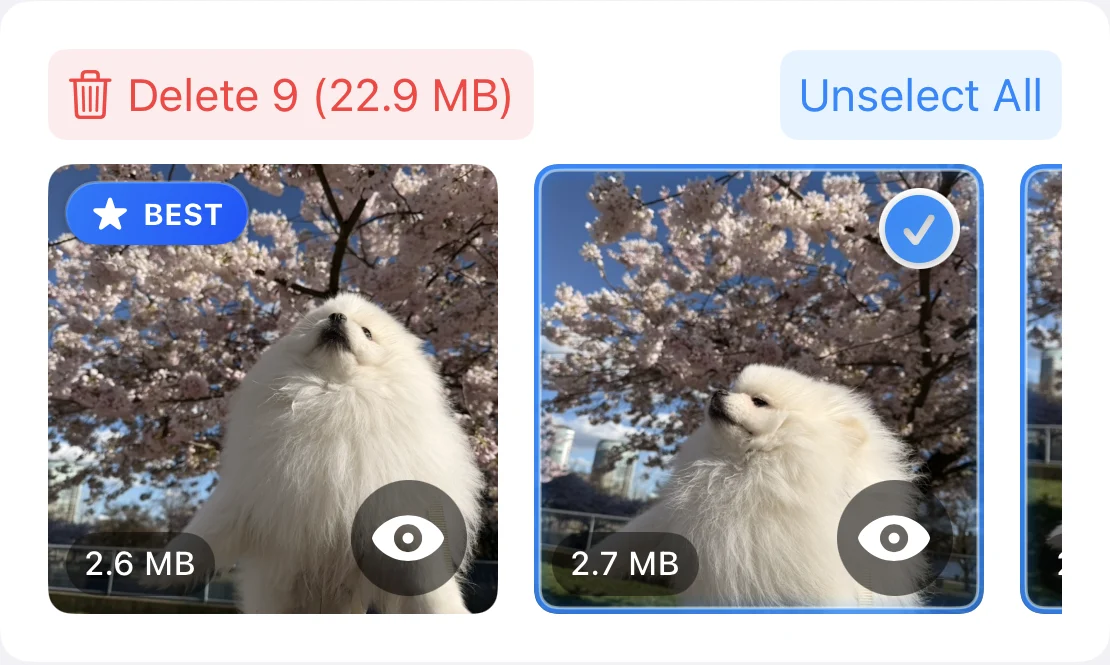
A group shows each photo with its file size. One is marked BEST, the suggested photo to keep: a favorite first, then the largest pixel dimensions, clearly better face quality, the larger file and the earliest capture. Favorites are never selected automatically.
- 03
Choose what to delete
Tap photos to select them, or tap Select All for the group and then tap the one you want to keep. When the scan finishes, Select All Duplicates in Options selects every duplicate except each group’s BEST photo and your favorites.
- 04
Delete and confirm
Tap Delete. iOS asks you to confirm, and the photos go to Recently Deleted, where you can recover them for 30 days.
To see only copies of the same photo, open Options and choose Exact Matches. More Matches also groups similar shots, and Balanced, the default, sits in between. Every matching level is free. The free plan cleans up 3 groups a month, and Pro removes the limit.
Why your iPhone has duplicate photos
- The same photo was saved more than once, for example from Messages, WhatsApp or AirDrop.
- Photos were imported twice from a camera, a computer or another app.
- You used Duplicate in Photos to keep a copy before editing.
- You took several shots of the same moment, or used burst mode. These are similar photos rather than exact copies, and the Duplicates album usually skips them.
After you delete or merge
Both methods delete through Apple Photos, so the same rules apply. Deleted copies stay in Recently Deleted for 30 days. If you use iCloud Photos, the deletion also applies on your other devices signed in with the same Apple Account.
You get the storage back when Apple removes the photos after 30 days, or sooner if you delete them from Recently Deleted. After that, they can’t be recovered. Keep another backup of photos you can’t replace.
Questions about duplicate photos
For help with the app, contact support
PhotoCleanse is made by Vlad.
Does iPhone delete duplicate photos automatically?
No. Starting with iOS 16, the Photos app finds duplicate photos and videos and lists them in the Duplicates album, but nothing is merged or deleted until you tap Merge and confirm.
Why can’t I find the Duplicates album?
Photos has to index your library before the album appears. Apple says this happens while your iPhone is locked and connected to power, and it can take up to a few days for a large library. If the album still isn’t there, Photos hasn’t found any duplicates. Similar shots of the same moment aren’t listed there.
What happens to the copies when I merge duplicates?
Photos keeps one photo and moves the other copies to the Recently Deleted album, where you can recover them for 30 days. If you use iCloud Photos, the change syncs to your other devices signed in with the same Apple Account.
Can I delete all duplicate photos at once?
In the Duplicates album, tap Select, then Select All, then Merge. In PhotoCleanse, Select All Duplicates selects every duplicate except each group’s BEST photo and your favorites, and you review the selection before deleting. The free plan cleans up 3 groups a month; Pro removes the limit.
Can iPhone Photos detect duplicates?
Yes, on iOS 16 and later. Photos looks for duplicate photos and videos while it indexes your library and lists them in the Duplicates album under Utilities. It doesn’t list similar shots, such as retakes of the same moment, and on iOS 15 and earlier there is no Duplicates album.
Why don’t I have the Duplicates option on my iPhone?
Either your iPhone runs iOS 15 or earlier, Photos is still indexing your library, or it found no duplicates. The album also moved: on iOS 26 and 27 it’s under Collections › Utilities, on iOS 18 below your library, and on iOS 16 and 17 under Albums. The album disappears after you merge the last set.
Can I choose which duplicate to keep?
Not with Merge: Photos keeps the highest-quality version. To keep a specific copy, open the copy you don’t want, tap the Trash button and confirm. In PhotoCleanse you choose: it suggests a BEST photo, and you can select any photo in the group instead.
Does the Duplicates album find duplicate videos?
Yes. Apple’s Duplicates album lists duplicate photos and videos, and Merge works the same way for both. PhotoCleanse scans photos only, so use the Photos app for videos.
Does PhotoCleanse upload my photos?
No. PhotoCleanse compares photo content on your iPhone. Your photos aren’t uploaded, and nothing is deleted until you select photos and confirm in iOS.
Will deleting duplicates free up storage right away?
Not right away. Deleted photos stay in Recently Deleted for 30 days and use space on your iPhone until Apple removes them or you delete them from that album. Apple doesn’t count Recently Deleted photos toward iCloud storage.
Related guides

Try PhotoCleanse
on your iPhone
Clean up 3 duplicate groups a month for free.
For iPhone · Optional Pro subscription
Not for videos or Android phones: PhotoCleanse cleans up photos only.

Scan with your iPhone camera
Opens the App Store