Guide
iPhone storage full? How to free up space from photos
When your iPhone says Storage Almost Full, open Settings, tap General, then iPhone Storage to see what uses the space. If Photos is near the top, delete duplicates and photos you don’t need, then empty Recently Deleted: deleted photos keep using space there for 30 days. If you use iCloud Photos, turn on Optimize Storage so your iPhone keeps smaller versions.
Updated

Duplicates, Swipe and compression
You confirm before deleting.
Quick check
Why your storage is still full
Most “I deleted everything and it’s still full” cases come down to one of these. Find the line that matches what you see.
| What you see | Why | What to do |
|---|---|---|
| You deleted photos, but the space didn’t come back | Deleted photos wait in Recently Deleted for 30 days | Delete them from Recently Deleted |
| Photos is the largest category in iPhone Storage | Full-size originals are kept on the iPhone | Turn on Optimize Storage if you use iCloud Photos |
| You turned on Optimize Storage and nothing changed | iOS shrinks the library only when it needs space | Give it time, or delete what you don’t need |
| You compressed photos and used more space | A compressed copy is a new photo; the original stays | Delete the originals you replaced |
| The message says iCloud storage is full | iCloud storage is separate from iPhone storage | Free up or add iCloud storage instead |
| System Data or Other is large | Caches, logs and system files | iOS removes cached files itself when it needs space |
Start here
See what fills your iPhone
Open Settings, tap General, then tap iPhone Storage. The bar at the top splits your storage by category, and the list below shows each app with its size. Tap an app to see more, or to offload it: offloading removes the app but keeps its documents and data.
Above the list, iOS may show recommendations. Tap Show All, read each one, then tap Enable to turn it on or tap the recommendation to review what you can delete.
Apple counts photos and videos in the Photos app under Photos. Messages and their attachments count under Messages, so a photo that only lives in a chat doesn’t show up in your Photos library. Caches, logs, Siri voices and other system files fall under Other or System Data.
If Photos is one of the largest categories, the steps below are where you get the most space back.
Apple Support: How to check the storage on your iPhone and iPad
Step by step
How to free up space taken by photos
Work from the safest cleanup to the most permanent one. Nothing on this list deletes a photo without asking you first.
- 01
Merge duplicate photos
Open Photos, tap Collections, scroll to Utilities and tap Duplicates, then tap Merge on each set. Photos keeps one copy and moves the rest to Recently Deleted. The album only lists copies; bursts and retakes of the same moment usually aren’t there.
- 02
Clean up similar shots
Rows of near-identical photos take the most space after copies. PhotoCleanse scans your library on your iPhone, groups copies with similar shots, shows each photo’s file size and suggests one photo to keep in each group. You choose what goes.
- 03
Delete one-off photos you don’t need
Screenshots, receipts, parking spots and blurry shots add up. Delete them in Photos with Select and the Trash button (screenshots have their own collection; see how to delete screenshots), or swipe through them in PhotoCleanse: swipe left to mark a photo, right to keep it, then check the pile before deleting.
- 04
Compress large photos
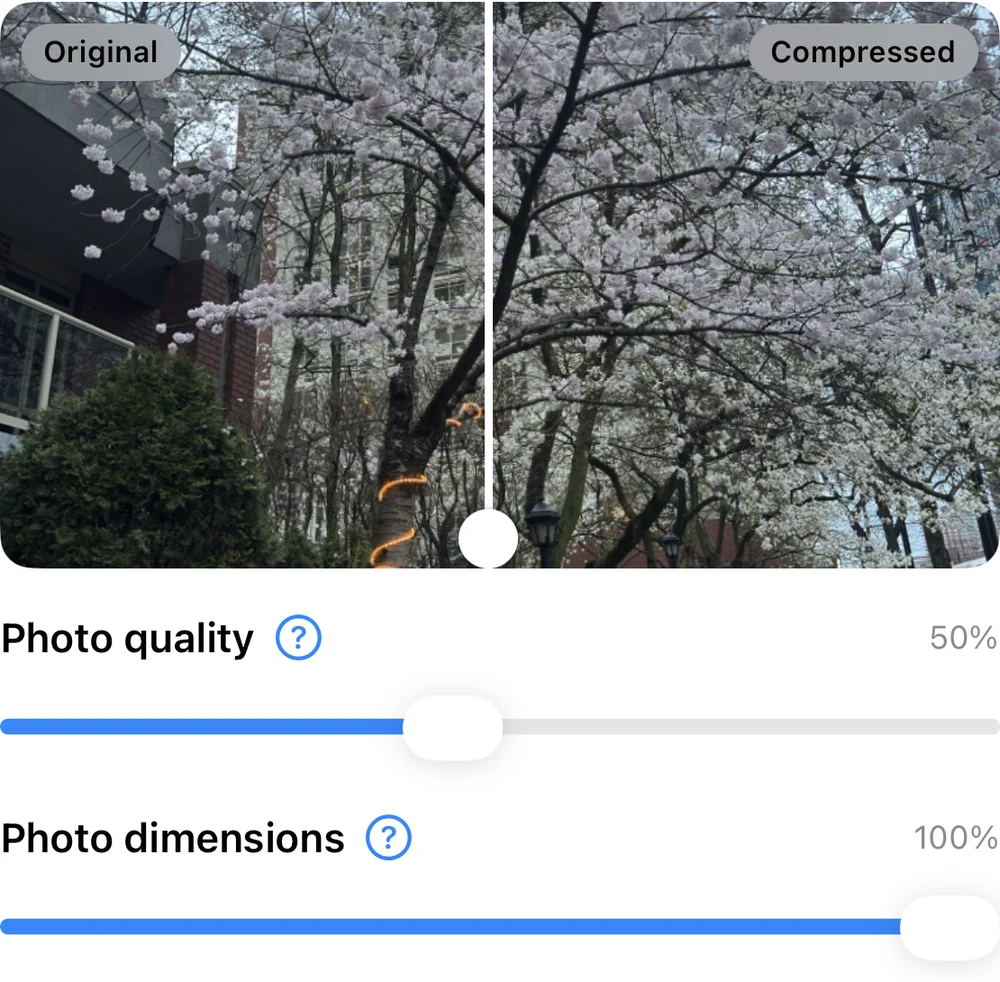
PhotoCleanse’s Compress tab lists the photos it can shrink, largest first, with the estimated savings. It saves smaller copies as new photos. The space comes back only when the originals are deleted, which happens only if you turn that on and confirm.
- 05
Empty Recently Deleted
Open Photos, tap Collections, scroll to Utilities and tap Recently Deleted. Tap View Album and unlock it with Face ID or Touch ID. Tap Select, choose photos, then tap the More button and Delete, or Delete All to empty the album. This is the step that frees the space, and it can’t be undone.
- 06
Turn on Optimize Storage
If you use iCloud Photos, go to Settings, tap your name, then iCloud. Under Saved to iCloud, tap Photos, tap iPhone Storage and choose Optimize Storage. In iOS 26 or earlier, choose Optimize Storage on the Photos screen.
Sources: Apple Support, Delete photos on your iPhone or iPad and Set up and use iCloud Photos. The PhotoCleanse free plan includes 3 duplicate-group cleanups, 1 compressed photo and 1 Swipe deck a month; Pro removes the limits.
Still full after deleting photos?
Check Recently Deleted first. Deleting photos in the Photos app, or in an app like PhotoCleanse that deletes through Photos, moves them to Recently Deleted. Apple keeps them there for 30 days so you can recover a mistake, and they keep using space on your iPhone until Apple removes them or you delete them from that album.
Give Optimize Storage time. Turning it on doesn’t shrink your library at once. Apple says iCloud Photos optimizes the library when the iPhone needs more space, starting with the photos and videos you open least.
Count the copies you added. Compressing a photo, saving one from a chat or duplicating it before an edit adds a photo. Compression only saves space once the originals are gone.
Look beyond Photos. If iPhone Storage shows Messages, an app or System Data at the top, deleting photos won’t make much difference. Apple says iOS removes cached and temporary files itself when it needs space, so you don’t have to.
iPhone storage or iCloud storage?
They are two different places. iPhone storage is the capacity of your iPhone. iCloud storage is the space in your Apple Account that holds iCloud Photos, iCloud Backup and iCloud Drive.
When iCloud storage runs out, Apple says your iPhone stops backing up to iCloud and new photos and videos stop uploading to iCloud Photos. Your iPhone can still have plenty of room. Deleting photos you don’t need frees space in both places when iCloud Photos is on, because the deletion syncs to iCloud and to your other devices.
A bigger iCloud plan alone doesn’t free space on your iPhone. It helps when you also turn on Optimize Storage, so the full originals live in iCloud and your iPhone keeps smaller versions.
Where PhotoCleanse fits
An app for the photo part
We make PhotoCleanse, so take this section with that in mind. It handles the photo steps above in one app: duplicate and similar photos, Swipe for one-off photos, and compression for large ones. It doesn’t show your iPhone’s storage breakdown, clear caches or touch other apps; use iPhone Storage in Settings for that.
PhotoCleanse analyzes and compresses photos on your iPhone without uploading them. Nothing is deleted until you confirm in iOS, and deleted photos go to Recently Deleted like any other deletion, so step 5 still applies.
Every feature is in the free plan, with 3 duplicate-group cleanups, 1 compressed photo and 1 Swipe deck each month. PhotoCleanse Pro, a weekly or yearly subscription, removes the monthly limits.
Before you delete a lot
- Back up photos you can’t replace somewhere other than this iPhone. With iCloud Photos on, a deletion reaches every device signed in with the same Apple Account.
- In an iCloud Shared Photo Library, only the person who added a photo can delete it for good or recover it from Recently Deleted.
- If the Trash button is gray, the photo may have been synced from a computer. Apple says you might need to stop syncing photos from that computer first.
Questions about iPhone storage and photos
For help with the app, contact support
PhotoCleanse is made by Vlad.
Why is my iPhone storage still full after deleting photos?
Deleted photos move to the Recently Deleted album and stay there for 30 days, so they keep using space on your iPhone. To get the space back now, open Photos, tap Collections, scroll to Utilities, open Recently Deleted and delete the photos there. After that they can’t be recovered.
Does deleting photos on my iPhone delete them from iCloud?
Yes, if iCloud Photos is on. Apple says a photo deleted on one device is also deleted on every other device signed in with the same Apple Account. Back up any photo you want to keep before you delete it.
Will Optimize iPhone Storage delete my photos?
No. With iCloud Photos and Optimize Storage on, your iPhone keeps space-saving versions of photos and videos while iCloud keeps the full-resolution originals. You can still download an original when you need it. iOS optimizes the library only when the iPhone needs more space, starting with the photos you open least.
What is System Data or Other in iPhone Storage?
Apple’s storage guide describes Other as files you can’t remove, such as Siri voices, fonts, dictionaries, logs, caches, the Spotlight index and system data like the Keychain. iOS removes cached and temporary files itself when it needs space, so you don’t have to.
I have plenty of iCloud storage. Why is my iPhone full?
iCloud storage and iPhone storage are separate. A bigger iCloud plan doesn’t free space on the iPhone by itself. With iCloud Photos and Optimize Storage on, the iPhone can keep smaller versions of your photos while the originals stay in iCloud.
Can PhotoCleanse free up iPhone storage?
It frees up space taken by photos. PhotoCleanse, which we make, finds duplicate and similar photos, lets you swipe through photos to delete the ones you don’t need, and compresses large photos. The free plan includes 3 duplicate-group cleanups, 1 compressed photo and 1 Swipe deck a month; Pro removes the limits. It deletes through Apple Photos, so deleted photos go to Recently Deleted first.
Is it safe to empty Recently Deleted?
Only when you’re sure. Photos you delete from Recently Deleted are gone for good, and with iCloud Photos on they’re gone from your other devices too. Scroll through the album first and recover anything you deleted by mistake.
Related guides

Try PhotoCleanse
on your iPhone
Find duplicates and large photos for free.
For iPhone · Optional Pro subscription
Not for videos or Android phones: PhotoCleanse cleans up photos only.

Scan with your iPhone camera
Opens the App Store